Android guide
How to transfer photos from Android to your PC without the cloud

A cloud account is the easiest way to move photos off an Android phone, and it is also the only method that makes a second copy somewhere you don't control. For holiday pictures that's fine. For ID scans, medical letters or anything you put in a vault, it defeats the point.
The good news: you don't need the cloud. There are four local routes, plus one that keeps the files encrypted the whole way. Here is what each one actually does.
The five routes, compared
| Method | Needs internet | Leaves a cloud copy | Best for | Weak point |
|---|---|---|---|---|
| USB cable | No | No | A few large videos, a full library | MTP is slow with thousands of small files |
| Quick Share | Local Wi-Fi (or Bluetooth for small items) | No | A handful of photos to a Windows PC | Needs the Quick Share app on the PC |
| LocalSend | Local Wi-Fi | No | Cross-platform, no account, open source | One more app on both ends |
| Cloud (Photos / Drive) | Yes | Yes | Automatic backup you actually want | The copy is in someone else's account |
| Encrypted LAN transfer | Local Wi-Fi only | No — ciphertext only | Private photos, ID documents, a vault | You decrypt on the PC afterwards |
Decide one thing before you start: should the copy on the PC be readable, or encrypted? A readable copy is easier to open, but it is also readable by anyone who later gets the PC, the backup, or the repair shop. Encrypted is slower to use and needs your recovery code.
Method 1: USB cable (the reliable one)
This is still the best route for a large batch, and it works with the phone in airplane mode.
- Plug the phone into the PC. Use a data cable, not a charge-only one. If Windows shows nothing, try another port before anything else.
- Choose "File transfer" on the phone. Pull down the notification shade, tap the USB notification, and pick File transfer (MTP). "Charging only" is the default, and it explains most "the PC can't see my phone" cases.
- Open the phone in File Explorer. It appears under This PC. Photos are in
DCIM/Camera, screenshots inPictures/Screenshots, downloads inDownload. - Copy, don't move, on the first pass. Copy the folders, wait for the progress bar to finish, then check the files on the PC. Delete from the phone only after you have verified the copy.
What it does well: no account, no network, no size limit, and the folder structure survives. What it doesn't: MTP can stall on thousands of tiny files, and it exposes every readable file on the phone to the PC. If the photos are in an encrypted vault, the vault folder is what transfers — and it stays ciphertext.
Method 2: Quick Share (fast for a handful of files)
Quick Share is Google's local transfer feature. It works between Android phones, and with a Windows PC through the Quick Share app.
- Install Quick Share on the Windows PC from Google's site, and sign in if it asks.
- On the phone, select the photos in Google Photos or your gallery, tap Share → Quick Share.
- Pick the PC. Accept on the PC.
- Files land in the PC's Downloads folder by default.
It uses Wi-Fi Direct or the local network, so it does not upload to Google Photos. It is genuinely quick for 10–50 photos. For a 40 GB library, use the cable.
Method 3: LocalSend (no account, cross-platform)
LocalSend is an open-source app that sends files over your local network between Android, Windows, macOS and Linux. No account, no server, no upload.
- Install LocalSend on the phone and the PC.
- Make sure both are on the same Wi-Fi.
- Pick the files on the phone, choose the PC, accept on the PC.
It is the closest thing to AirDrop for mixed devices, and it is a good default if you transfer regularly. The trade-off is one more app on both ends, and the files arrive as normal readable files — which is fine for holiday photos and wrong for a passport scan.
Method 4: the cloud (convenient, and a second copy)
Google Photos, Drive, OneDrive and Dropbox all do this well. The catch is structural, not technical: the photo now exists in an account that syncs to every signed-in device, survives on a server you don't control, and is part of any account-level access.
If you use it:
- Turn on backup only for the folders you mean to back up, not the whole device.
- Remember that "Free up space" deletes the local copy and leaves the cloud copy as the only one.
- For documents, use a vault or an encrypted archive instead. The cloud is a backup, not a private shelf.
Method 5: encrypted LAN transfer (when the files are private)
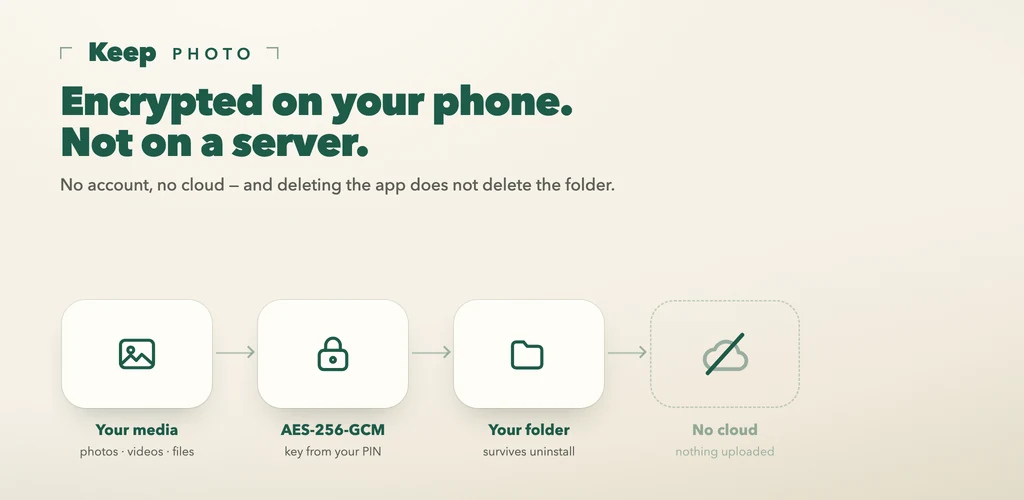
This is the route built into Photo Vault, and it exists because the other four either leave a readable copy or require an account.
The flow:
- Select the items in the vault. Long-press to multi-select photos, videos, files, voice notes or notes.
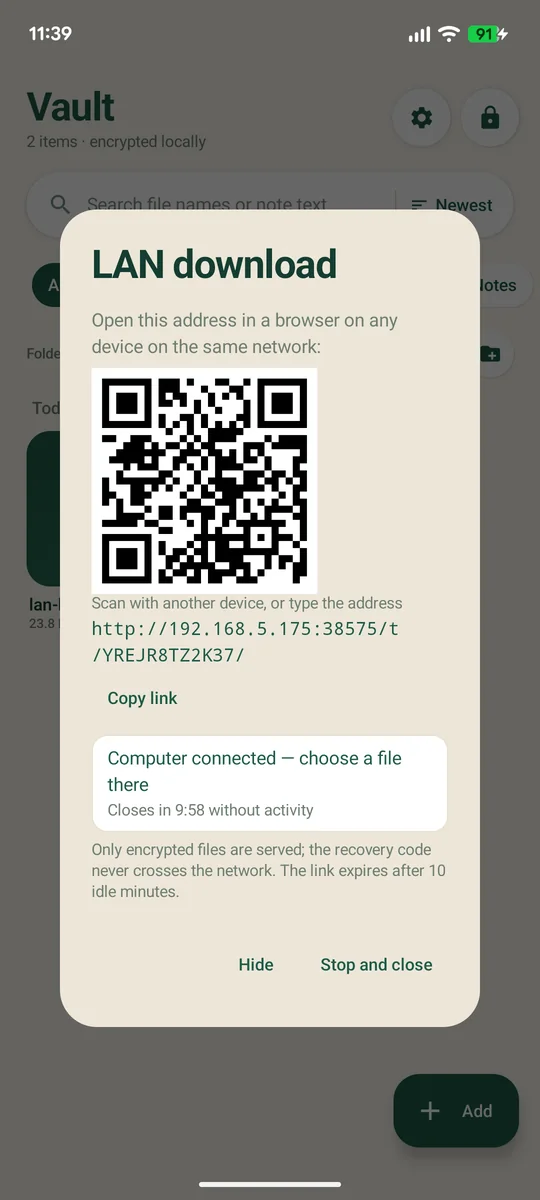
- Choose encrypted export → LAN download. The app encrypts the selection into
.kvencfiles — one per item, or a single bundle. - Open the address on the PC. Scan the QR code or type the short local address. The page is read-only and only serves ciphertext.
- Download, then decrypt. Open the files in the app, the command-line tool, or the offline decryptor with your recovery code.
Why this is different from a normal Wi-Fi transfer:
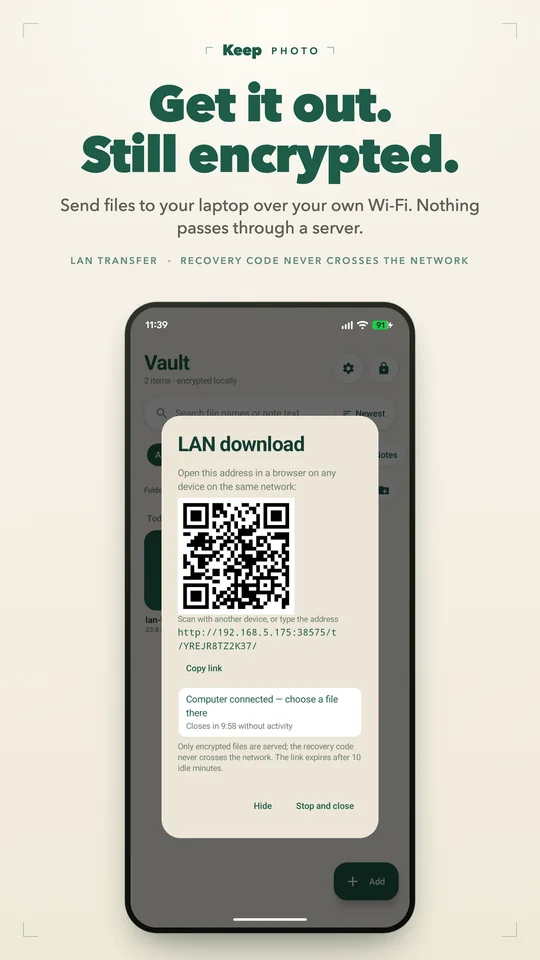
- Only ciphertext crosses the network. The files are already encrypted; the browser downloads blobs it cannot open without your recovery code.
- The recovery code never leaves the phone. It is not in the URL, the page, or the file.
- The link is one-time and local. It is a random token on your LAN, not a public URL, and it expires after 10 idle minutes.
- Nothing passes through a server. The phone is the server, and it stops when you close the dialog.
The browser will probably say the local page is "Not secure". That warning is about plain HTTP; the payload is encrypted before it is served, and the page contains no plaintext and no key.
How to verify the copy before deleting anything
Every transfer method can fail quietly: a cable disconnect, a full disk, a filename collision. Check three things before you delete the originals:
- Count. Compare the number of files in the source folder and the destination folder.
- Size. Right-click → Properties on both sides. A missing video is usually obvious in the total size.
- Open a sample. Open the newest, the oldest and the largest file. For a video, scrub to the end — a truncated copy often plays the first few seconds.
- For encrypted exports, decrypt one file. If one opens, the rest almost certainly will; if it doesn't, you have found the problem while the originals are still on the phone.
Photo Vault's export does this verification for you: every exported file is read back and checked after writing, and the report tells you which files passed. That is also why the export can take longer than the copy itself.
What not to do
- Don't cut and paste on the first transfer. Copy, verify, then delete. "Move" turns a cable glitch into a lost file.
- Don't delete the phone copy to "free up space" until the PC copy is verified and backed up. One copy on a laptop is still one copy.
- Don't use a public Wi-Fi network for a LAN transfer. The LAN page is designed for your own network. On a hotel or café network, other devices may be able to reach it (the token still protects the files, but there is no reason to take the risk).
- Don't rename the vault folder's contents. The app expects its own structure; move the whole folder, not individual blobs.
FAQ
Can I transfer photos from Android to PC without the internet?
Yes. A USB cable, Quick Share on a local network, LocalSend, or the vault's LAN transfer all work without an internet connection. Only the cloud route needs the internet.
Why does my PC say the phone is empty when I plug it in?
The USB mode is set to "Charging only", the cable is charge-only, or the phone is locked. Unlock the phone, tap the USB notification and choose File transfer. If that fails, try a different cable before reinstalling drivers.
Is Quick Share the same as Nearby Share?
It is the current name for Google's local sharing feature. On Windows it needs the Quick Share app; on Android it is built into the share sheet. It transfers locally and does not require a Google Photos upload.
Can I transfer a photo vault to a new PC?
Yes — copy the whole vault folder, or use the full encrypted backup. The PC copy is ciphertext; open it with the app on a phone or with the offline decryptor using your recovery code. Moving a vault to a new phone is covered in this guide.